Kmat V.10 -- Check Hash and Un-Zip

|
|
* Note * This is for those not comfortable with how to install a "Zip" download file. Those with an un-zip util and hash checking program, can skip this tutorial and use your normal tool set. Part_1 : Need to find the downloaded "Zip" file and copy it's full path. Open Windows "File Explorer" and navigate to the location the zip file was downloaded. Usually this is c:\users\your_user_name\downloads\kmat_10.zip". Example: 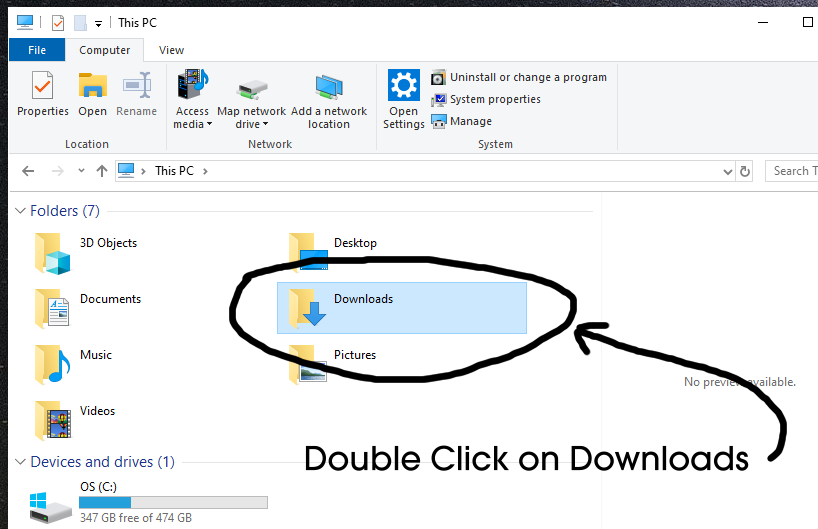 Click on the file, depending on version of Explorer and Win-10 or Win-11, you need to find the option to "Copy Path". Some versions it is a menu bar item, others a right mouse click option. Example: 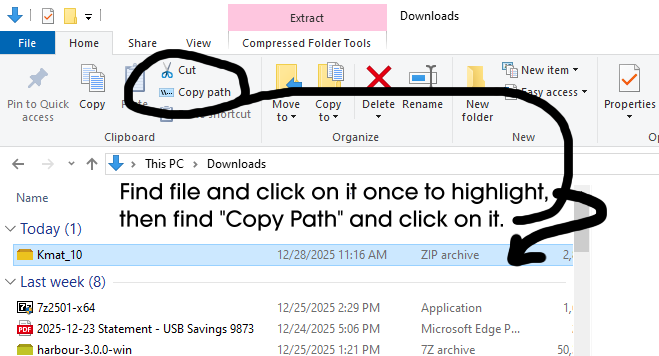 Another option is to create a desktop shortcut and then open properties and copy path. or properties from explorer when on the file, and copy the path. *** You need to have the full path including file name and extention. *** *** Copy into memory so you can later paste.*** Part_2 : Check file's hash. Next you need to open the CMD window, type CMD in Search then enter. or Windows Key & "R", Type CMD, then OK or Enter. Example: 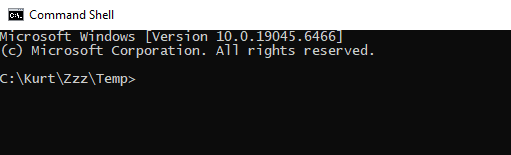 Once in the command window, type: certutil -hashfile (then paste the above path to the line) then type one space and "MD5" The line should look something like this: certutil -hashfile c:\Users\your_user_name\downloads\kmat_10.zip MD5 Example: 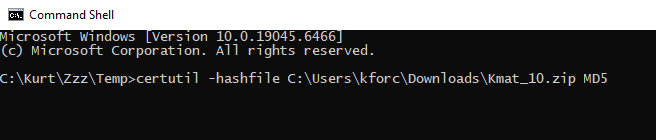 Press the enter key It should echo a newly created hash value to compare with hash number on the Kmat download page. Windows (certutil -hashfile), displays the hash lower case, normal order. Example: 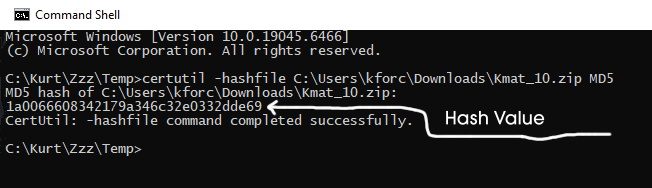 Note: Above is an example. Some hash programs show the output in upper case and some even reverse the string right to left Many let you pick the output (upper, lower, normal, reverse) Be sure to compare apples to apples if using another hash program. Part_3 : UnCompress to working folder. Most Un-Compression programs allow you to pick an extraction location, moving the file might not be necessary. If necessary copy or move the Zip file to location you want the program to be installed. Use Explorer or any un-zip utility and un-compress the main file and sub folders. In Explorer locate and while on the file right click and select extract as the option. In most versions of Windows Explorer it has the option of where to extract the files. After extraction you should see the main application Kmat_10.exe and 3 folders Pictures, Icons and Lic_Code. Example:  Next create a shortcut for the desktop or place in folder for using the program. To uninstall just delete main folder with all files and sub folders and erase any shortcut's you made. Enjoy, and feel free to eMail with any questions, suggestions, etc. Contact : kurt@kurtebertphoto.com Web : http://www.kurtebertphoto.com/kmat/ |
|